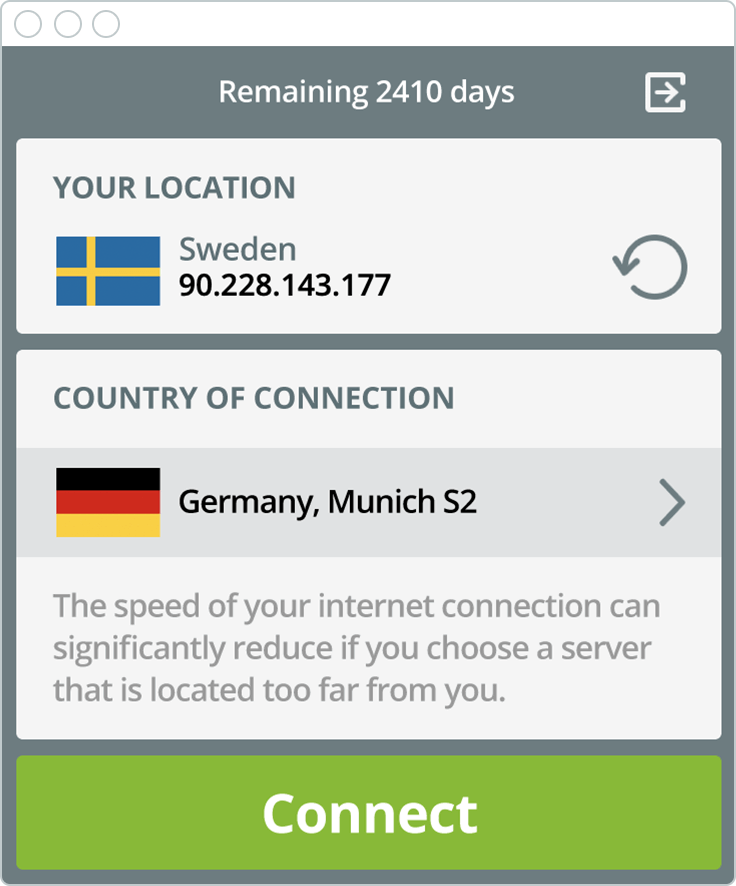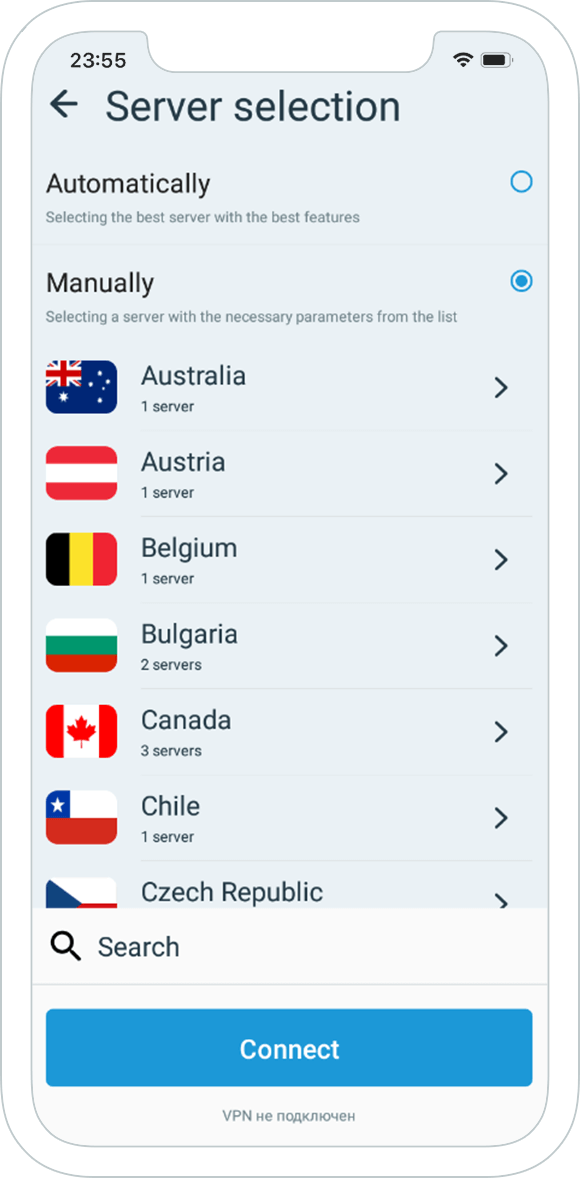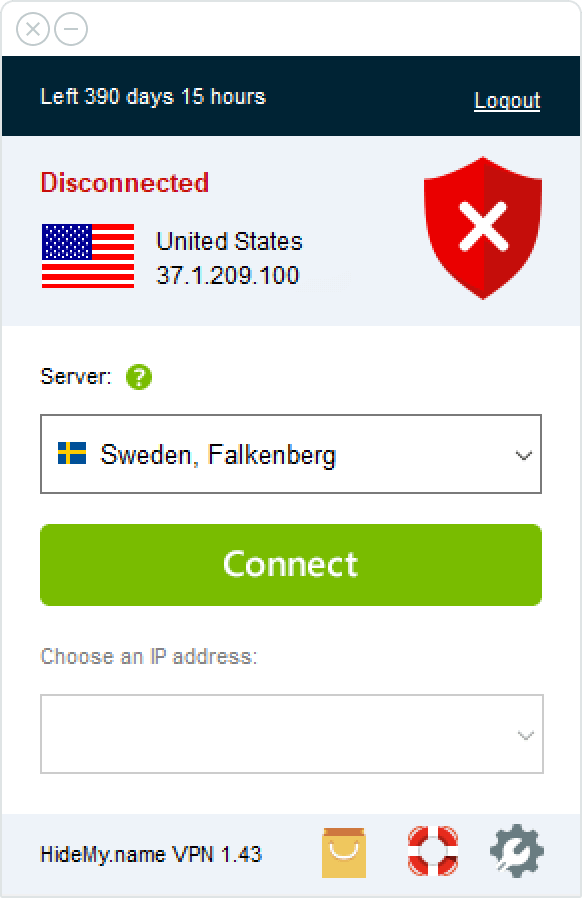





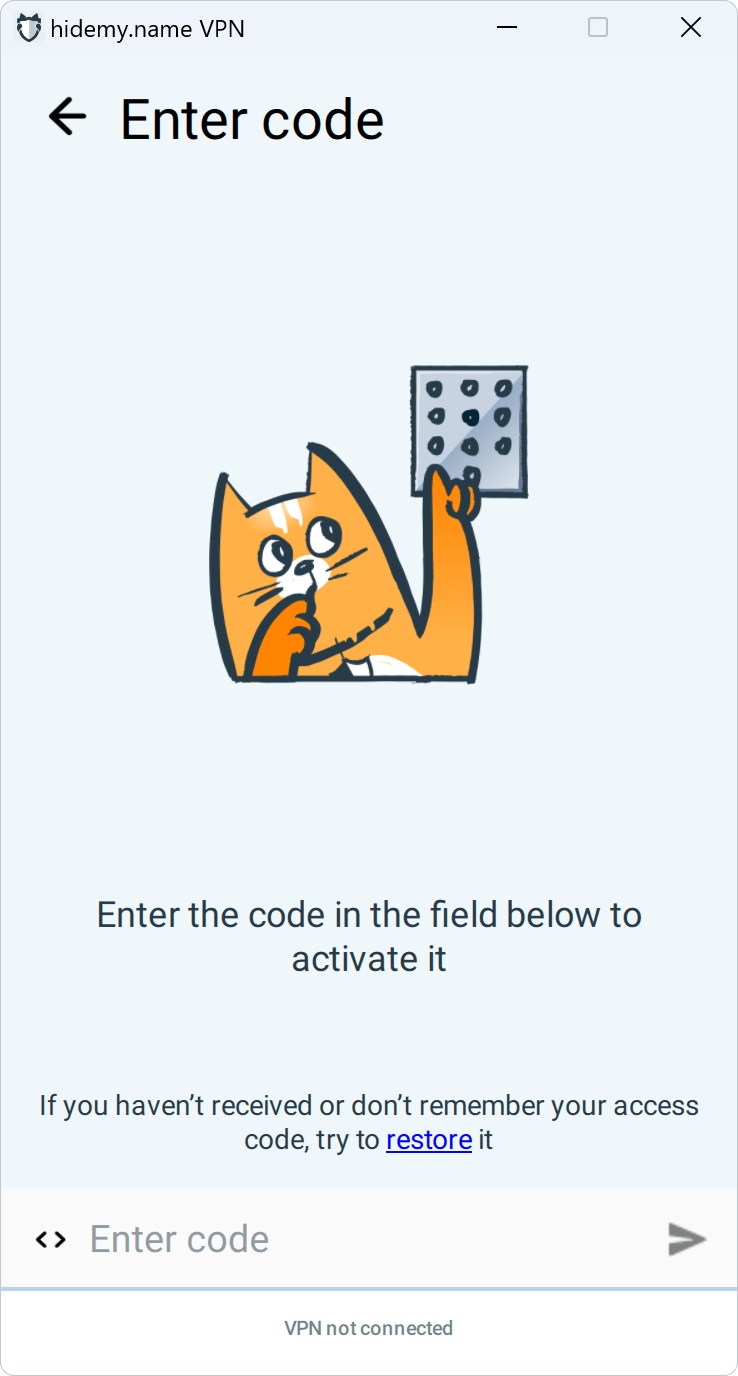
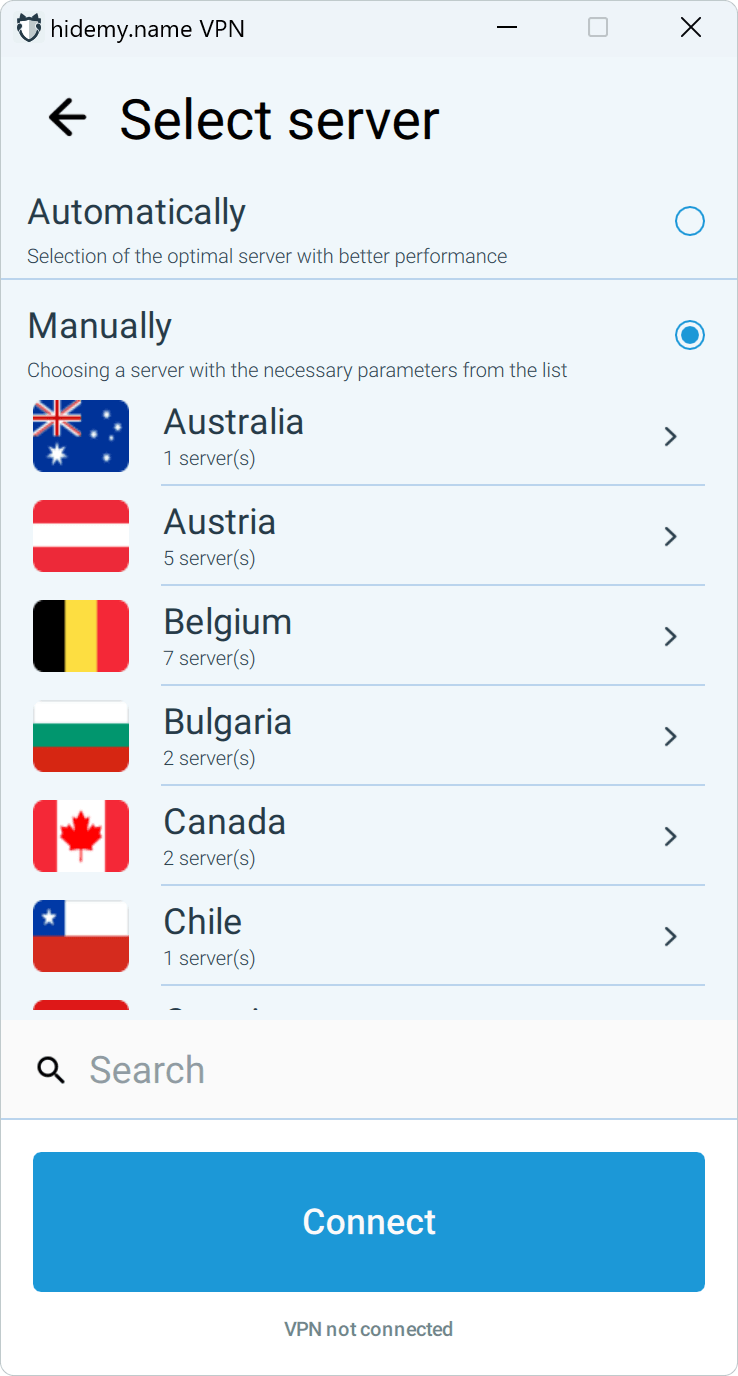
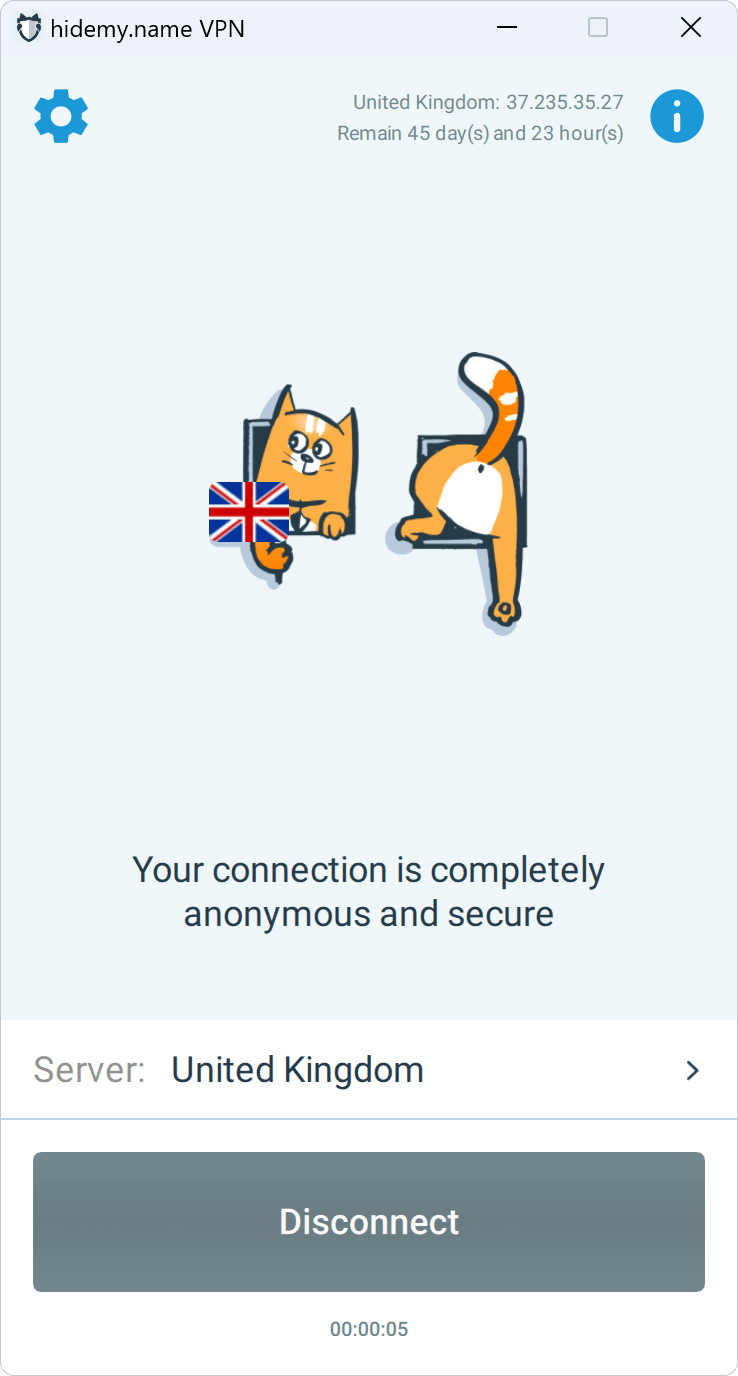
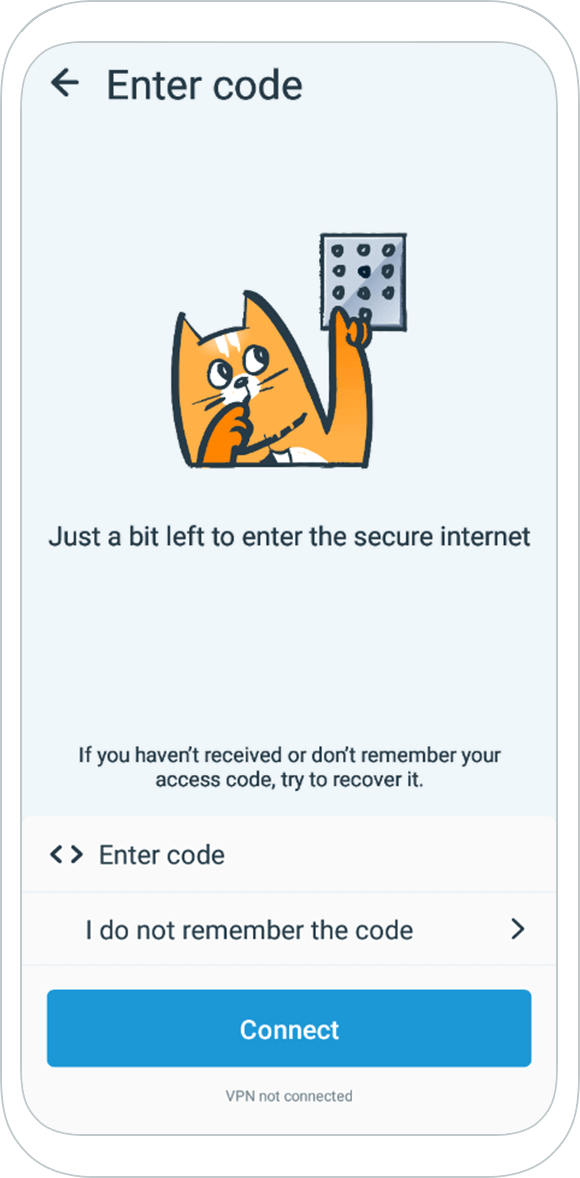
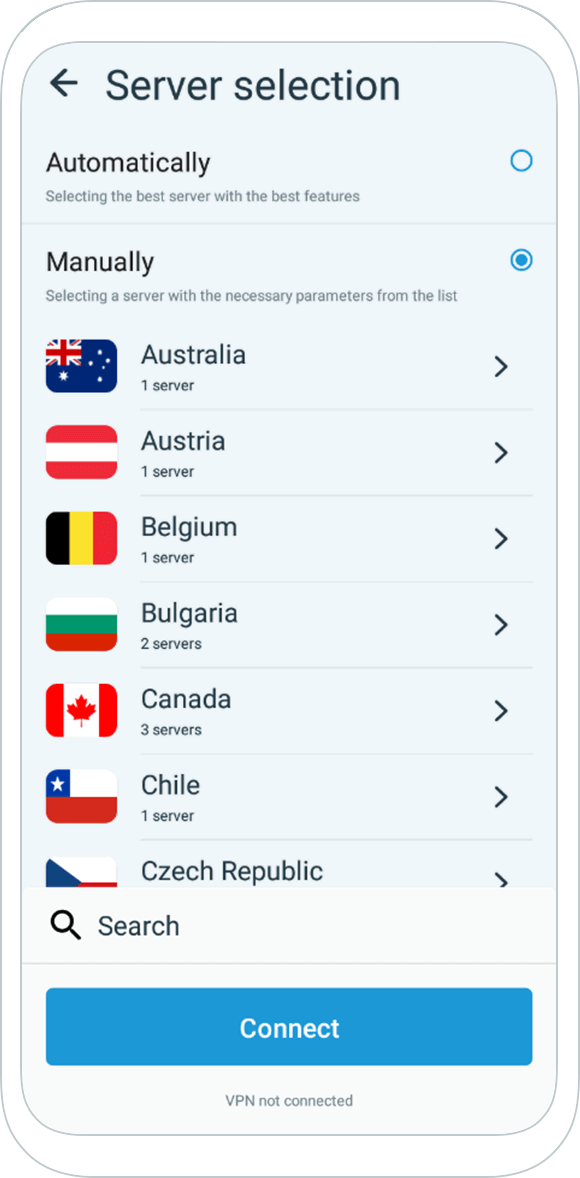
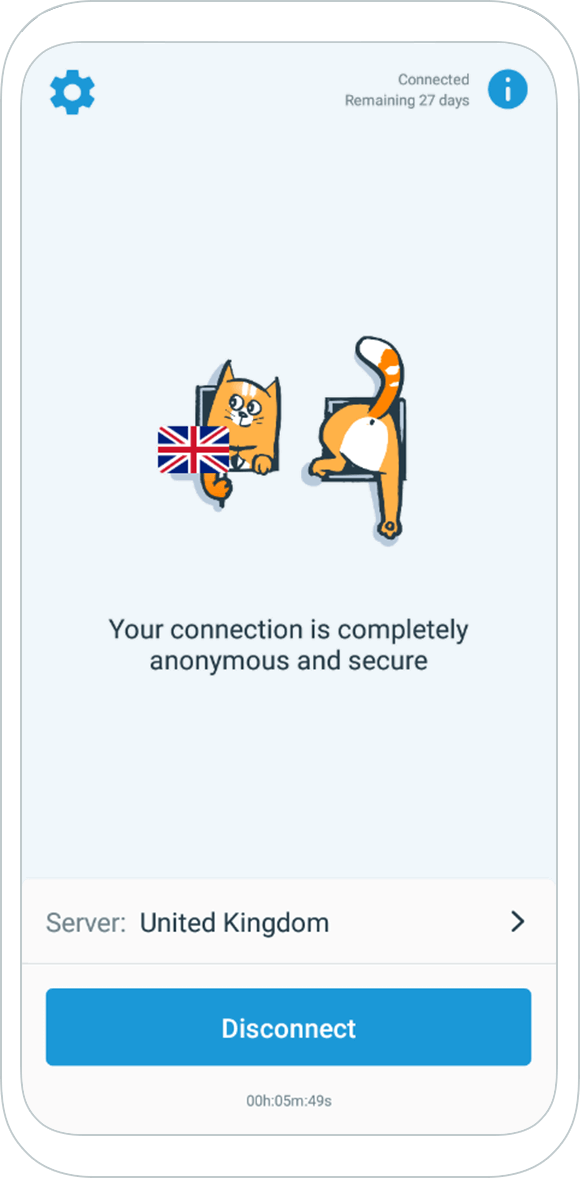
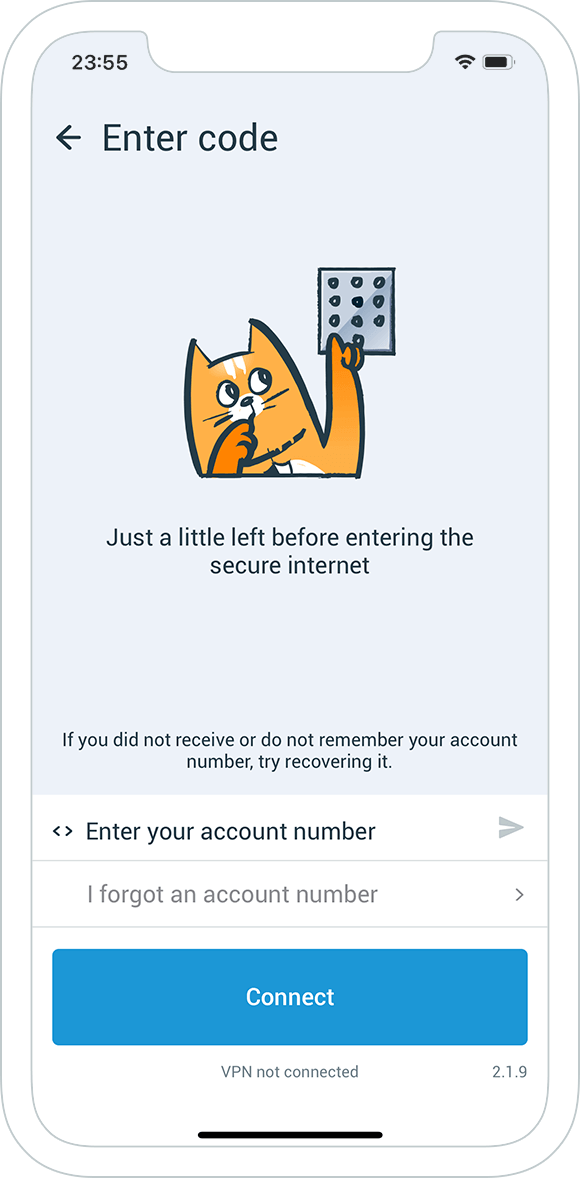
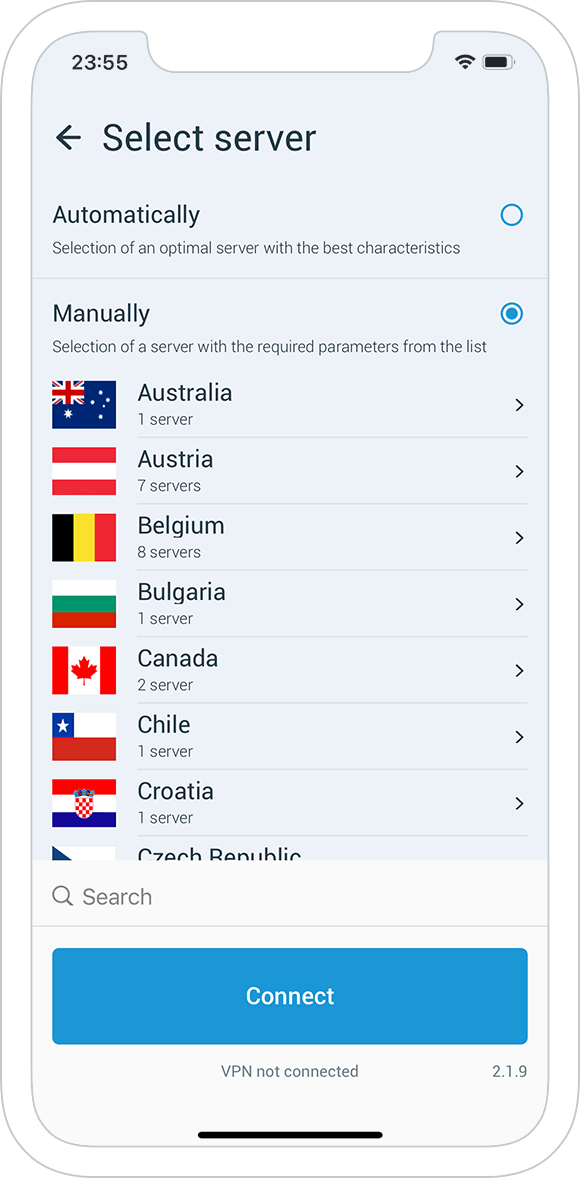
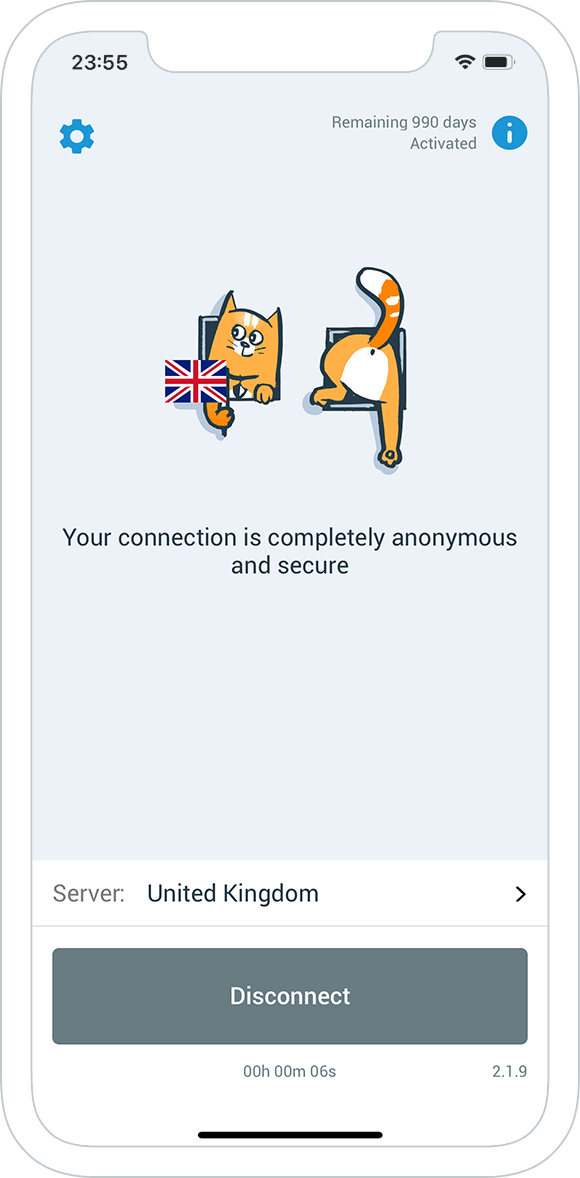
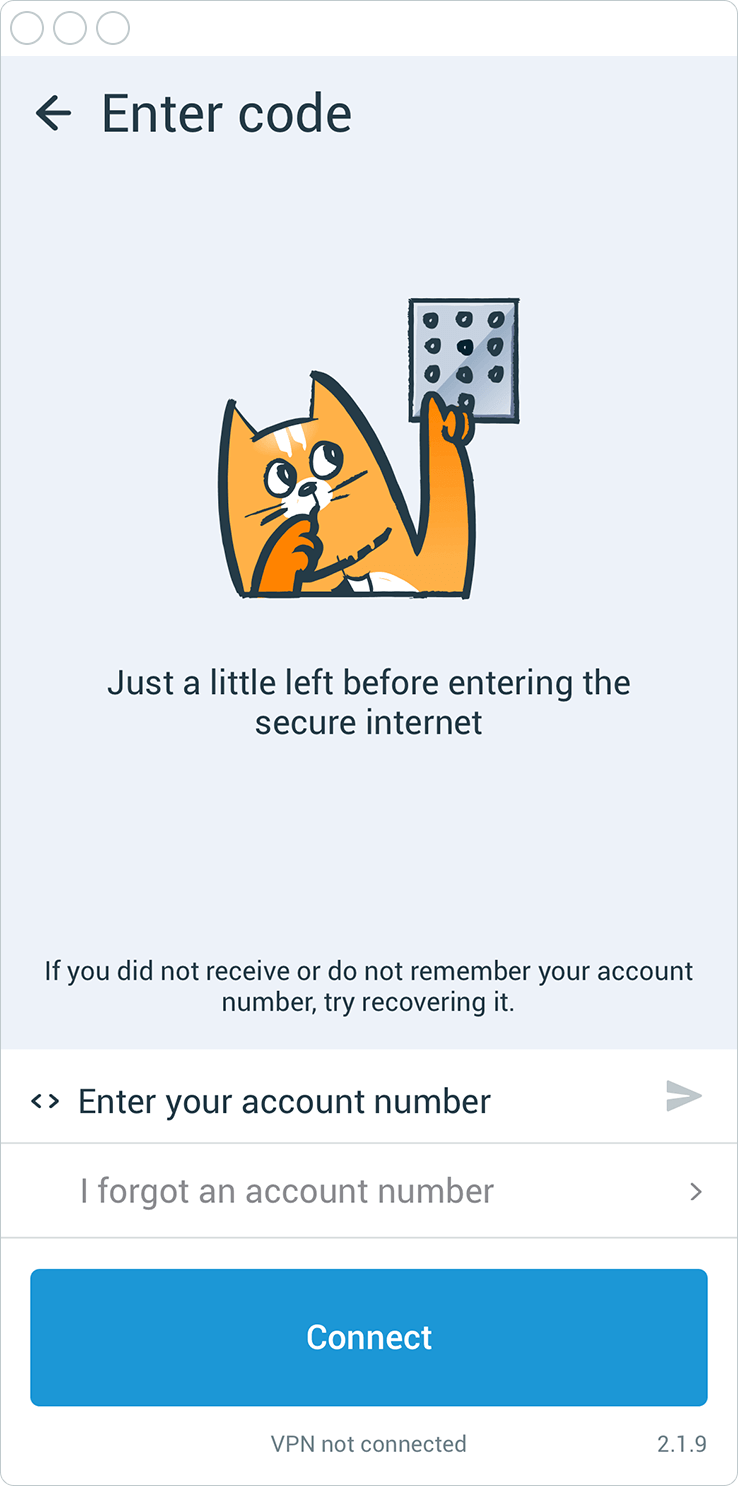
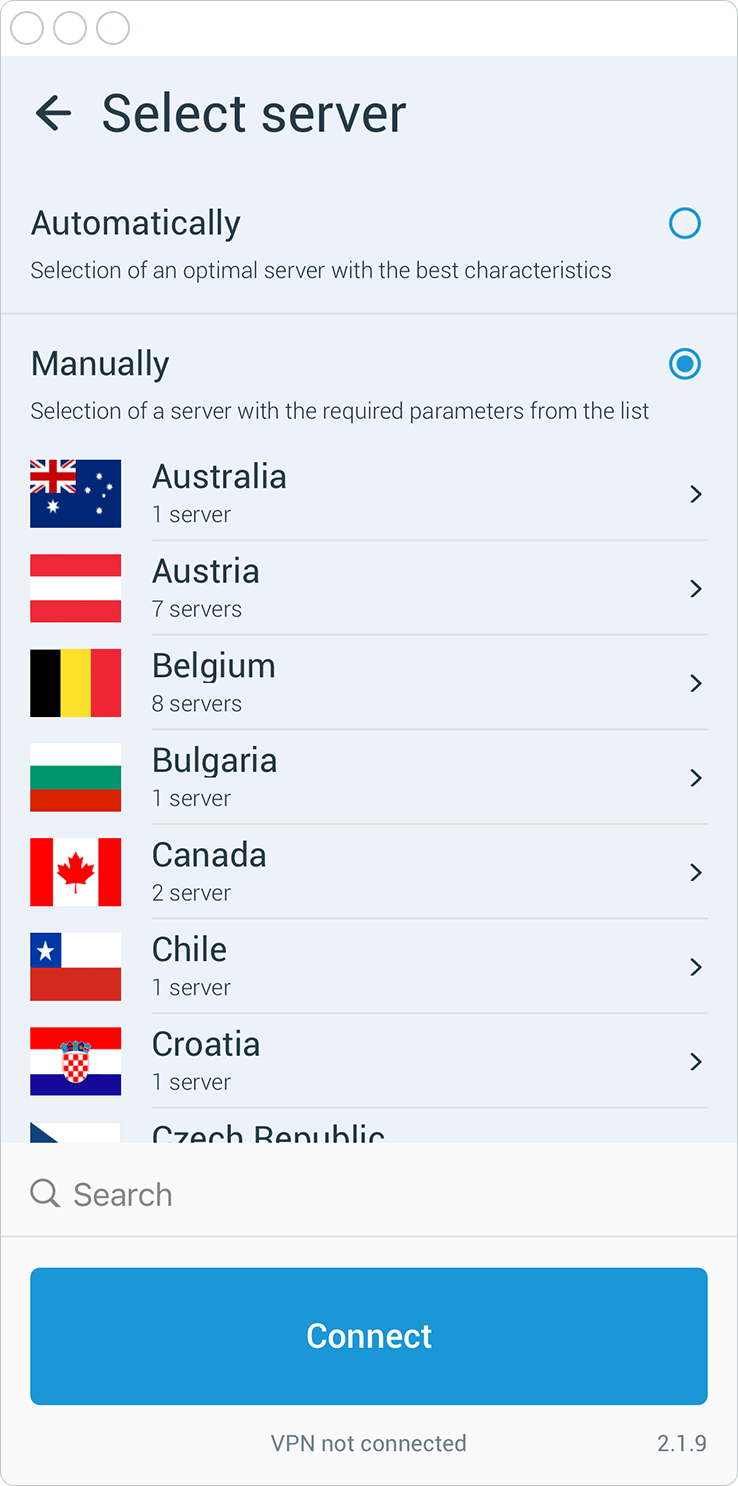
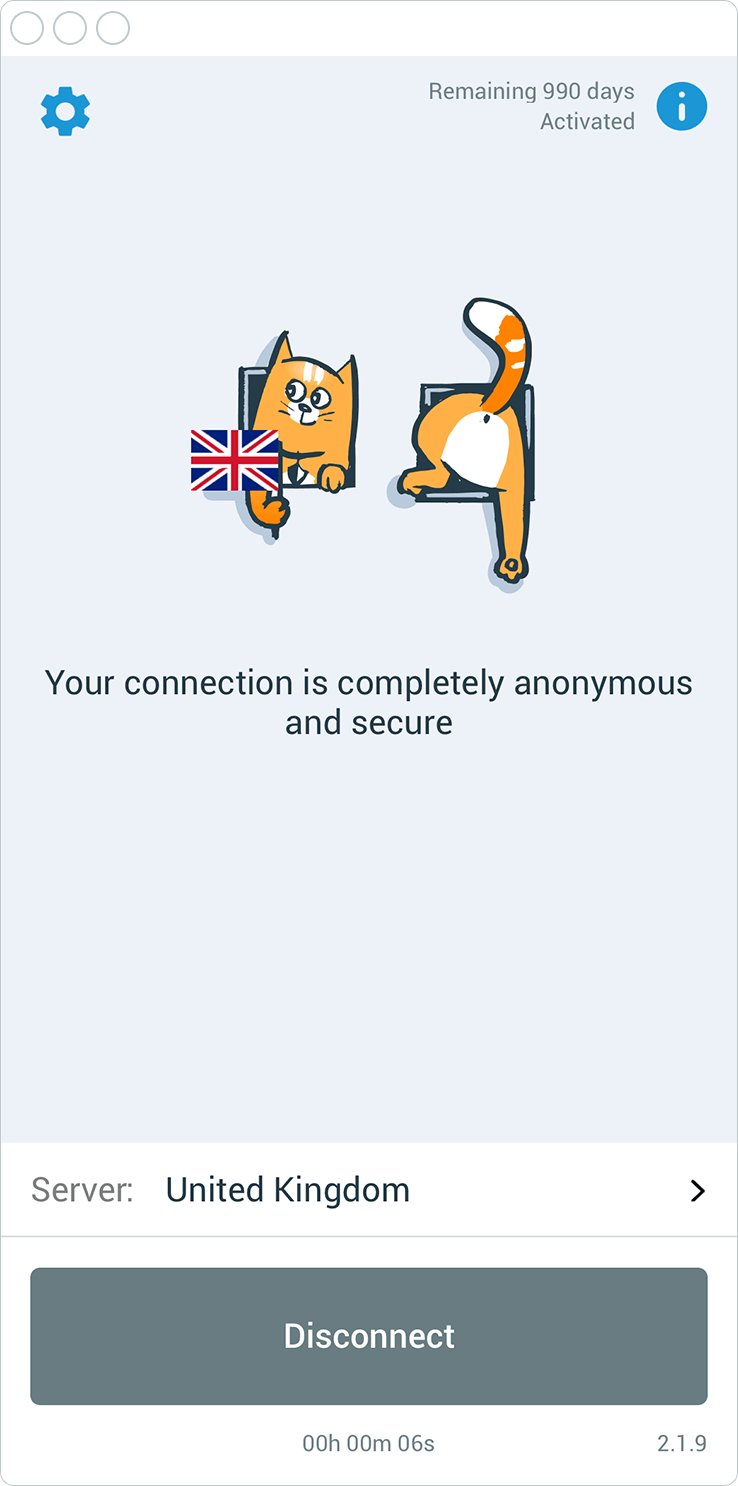
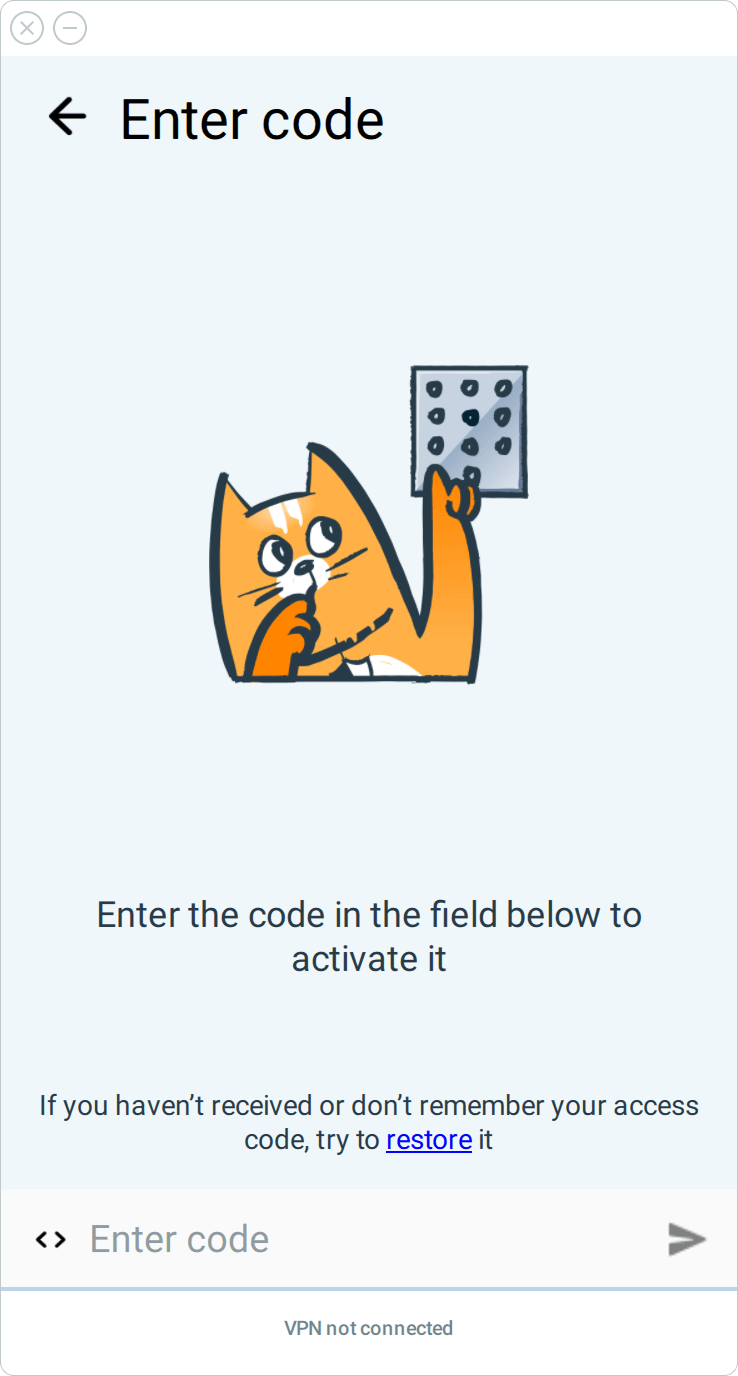




What is the advantage of VPN?
Web Proxy
VPN
Change IP-address
Choose country of IP-address
Unblock all sites
Unlimited data transfer
Encrypt and protect web traffic
Unblock any ports
Transparent work for the entire PC
Hard to recognize and block
9 IP
120+ IP
3 countries
29 countries
Your freedom:
An owners of many popular sites, games and services, restrict access for visitors from non-allowed geographic locations.
Below is a only a small part of the resources that our VPN provides full access (100% legal).
| Xbox Live — service created specifically for Xbox360. Multiplayer games and multimedia content.
Allowed: only from Europe and USA | | BBC — autonomous public service broadcaster that operates under a Royal Charter
Allowed: only from United Kingdom |
|---|
| Last.fm — award winning music website, founded in the United Kingdom in 2002.
Allowed: only from Germany, UK and USA | | hulu — streaming video of TV shows, movies, webisodes and other new media, trailers, clips.
Allowed: only from USA |
|---|
| Yandex.Music — most popular music site in Russia. Newest albums, ratings and playlists.
Allowed: only from Russia and Ukraine |
|---|
Other interesting resources available through our VPN (mostly from the U.S. and Europe servers):

Server locations:
By connecting to our VPN, you can freely switch between all available servers without any restrictions.
| Current available servers: | | Plan to add: |
|---|
| Russia (Moscow, SPb, Saratov, Yeburg) | | Hong Kong (Central, North, Kwai-Tsing) | | Japan |
|---|
| USA (Utah, Asheville, Chicago, San Jose) | | Spain (Madrid) | | Estonia |
|---|
| Canada (Montreal, Regina) | | Netherlands (Amsterdam) | | Want another one? Tell us! |
|---|
| Latvia (Riga) | | New Zealand (Auckland) |
|---|
| Germany (Frankfurt, Falkenstein, Offenbach) | | Hungary (Budapest) |
|---|
| England (London, Worcester, Oxford) | | Luxembourg (Steinsel) |
|---|
| Ukraine (Kiev, Kharkov) | | France (Versal, Roubaix) |
|---|
| Italy (Marco) | | Switzerland (Zurich) |
|---|
| Sweden (Falkenberg) | | Austria (Graz) |
|---|
| Turkey (Istanbul) | | Poland (Poznan) |
|---|
| Kazakhstan (Karaganda) | | Czech Republic (Prague) |
|---|
| Iceland (Hafnarfjordur) | | Finland (Helsinki) |
|---|
| Vietnam (Ho Chi Minh) | | Indonesia (Java) |
|---|
| Chile (Vina del Mar) | | South Korea (Seoul) |
|---|
| Romania (Bucharest) |
|---|
How to connect the VPN:
Instructions on using OpenVPN for popular operating systems. It's very simple and easy.
If you need assistance in connecting or there is a fail - please contact us via
feedback and we will try to respond promptly.
We can help you to set up via the remote desktop.Windows

Installation and configuration of the VPN (OpenVPN) for Windows is very simple and requires no technical knowledge - it is enough to perform 4 simple actions described in the instructions below (the entire process takes 3 minutes, watch the video):
- Download and install OpenVPN client openvpn-2.2.2-install.exe (you need the administrator rights). You can also download it with .zip archive or .xls extension.
- Download the archive with the keys and configuration by entering your code to the form of "Get VPN access" (at the top of this page).
- Move the config folder from the archive (see inside of windows) in C:\Program Files\OpenVPN (confirm the replacement, if needed).
- Start the OpenVPN GUI as administrator (for Windows 7 always use right click - "Run as administrator", even if you are logged in as administartor and have administrator rights).
- Right-click the tray icon and select [desired server] -> Connect. Wait a minute until tray icon becomes green.
- Check your IP address. If it's changed, it means VPN is set up and running and no additional action is needed.
Video instructions for setting up a VPN in Windows 7:Video instructions for setting up a VPN in Windows XP:If you have problems with the setting up
contact us and we'll try to help you.
If doesn't work:
1.
Ensure that you don't have third-party VPN or PPPoE connectionsIf you need PPPoE to access the Internet, OpenVPN will not work.
This limitation can be removed, using a router as PPPoE client. In this case you don't ned PPPoE on your PC anymore, and OpenVPN should work.
2.
IP doesn't change (Windows Vista or Windows 7).
Symptoms: Connection was succesful, but IP doesn't change.
Solution: Always use right click - "Run as administrator" to start OpenVPN GUI. Even if you are logged in as administartor and have administrator rights
Also check: "Routing and Remote Access" service may be disabled.
Control Panel - Administration - ServicesTo enable it, double click "Routing and Remote Access", you will see properties window. In dropdown menu «Startup type» choose «Automatic» and click «Start». Click «ÎÊ».
Now restart OpenVPN and check your IP again.
If you know another problems or their solutions -
write us Mac 
Setting up VPN for Mac OS is very simple and needs just a few clicks.
- http://code.google.com/p/tunnelblick/ - download the latest stable version.
- Install the program (by a simple transfer to a folder with all programs)
- Download our archive with the configuration and key (just enter your premium code in the form above).
The archive folder will be "mac os" which contains 2 files
HideME_Russian_Server.tblk and
HideME_German_Server.tblk
— Run (by double click) the desired configuration server or all the available ones, to add them to tunnelblick.
To connect: in the upper right corner (near the clock in the system tray), click on the TunnelBlick

and select Connect [desired server]
After about 30-40 seconds (sometimes it can be longer), the connection will be done

To check the successful IP change visit the following page
hideme.ru/ip/If the server is German, the IP will be similar to "
10.117.0.157" (in this case for third-party sites it will start at 188.), and if it is Russian - "95.141.193.*".
After the first successful launch and connect - the downloaded folders, including. Tblk, can be removed, or moved to another place (their data were loaded into Tunnelblick and the folders are no longer needed). Re-download of the configuration is possible by entering your code again.
Linux 
Installation on Linux requires the confidence of knowing console, networking technologies and the ability to google.
- Install OpenVPN
(apt-get install openvpn or aptitude install openvpn or yum install openvpn, depending on your system). - Download the archive with the keys and configuration. Find the configuration folder on your system configuration. On Debian it is /etc/openvpn (you can use whereis openvpn command).
- Delete all files from the folder (if any), and copy the files from the configuration archive from the config folder.
- Run it, for example: cd /etc/openvpn && sudo openvpn --config "inCloak.com Russia, Moscow (East).ovpn"
Detailed configuration:
Connect to any VPN server and refresh this page. You will see web based VPN panel at the top of the page:

Select your device that needs to be connected to VPN:
You can also connect another device later.
Connecting Windows computer through OpenVPN:
You can also connect another device later.
Connecting Windows computer:
You can also connect another device later.
If it still doesn't work:
- Make sure that you have followed the instructions exactly
(i.e, the OpenVPN client needs Administrator rights to work properly) - Try to find your issue in in FAQ (most problems can be solved there)
- Contact Support for your issue or try to use PPTP connection
Connecting Linux computer through OpenVPN:
You can also connect another device later.
Connecting Linux computer through OpenVPN:
You can also connect another device later.
Connecting iOS device:
All Apple mobile devices: iPhone, iPad, etc.
Settings → General → Network → VPN → Add VPN Configuration → L2TP
Description: whatever you like
(i.e, inCloak.com, Russia, Moscow)Server:
server list (opens in a new window)Account:
(your code)Password:
changeSecret:
incloaknetworkFor PPTP connection
(L2TP better!) just switch to PPTP from the top menu.
Connecting Android device:
Mobile devices of HTC, Samsung, Motorola, and other companies.
Settings → Wireless & networks → VPN Settings → Add VPN → Add L2TP/IPSec PSK VPN
VPN name: whatever you like
(i.e inCloak.com Russia, Moscow)Set VPN server:
server list (opens in a new window)Set IPSec pre-shared key:
incloaknetworkEnable L2TP secret:
disabledFor Android 4 you can try Add PPTP VPN (the same authentication, but
without incloaknetwork key).
Upon connection you will be prompted for your login:
Username:
(your code)Password:
changeConnecting your device through PPTP or L2TP:
You can also connect another device later.
PPTP:Account:
(your code)Password:
changeServer:
server list (opens in a new window)L2TP/IPSec:You will need additionally IPSec pre-shared key (PSK):
incloaknetwork Connecting your computer through PPTP or L2TP:
You can also connect another device later.
Connecting MacOS computer through OpenVPN:
You can also connect another device later.
Connecting MacOS computer:
You can also connect another device later.
Mac OS users rarely have problems, but
if there is one:
- Make sure that you have followed the instructions exactly
- if that doesn't help get in touch with us and we'll help you as fast as we can.
Connecting router:
You can also connect another device later.
Find your router's PPTP or L2TP settings and configure it using parameters below.
PPTP:Account:
(your code)Password:
changeServer:
server list (opens in a new window)If it has DNS field, set 8.8.8.8
L2TP/IPSec:You will need additionally IPSec pre-shared key (PSK):
incloaknetwork Connecting your computer through PPTP or L2TP:
You can also connect another device later.
PPTP:Account:
(your code)Password:
changeServer:
server list (opens in a new window)L2TP/IPSec:You will need additionally IPSec pre-shared key (PSK):
incloaknetwork Invalid code!
Or you just were curious what would happen? :)
Close this window after obtaining the code, enter your code, and click «Connect!» again
Partnership with us:
If you interested in partnership, please, contact us!
We will consider all your offers and surely respond you. More information about the partnership in our FAQ.